API Reference -
The API file, Euvis_Module_V1p2.dll is implemented with the CLR (Common Language Runtime) support. Languages targeting the runtime, such as C++/CLI, C#, Visual Basic, Jscript, J# and IL (Intermediate Language) assembler, can be used to reference the AWG API. In this manual, we use C++/CLI (with CLR-support) to demonstrate examples. Other languages can be applied in similar ways.
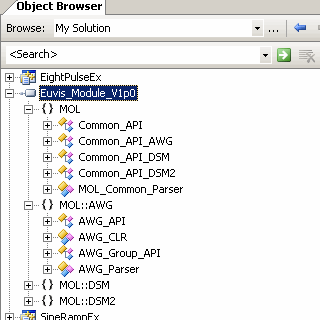
The API can be referenced by adding the Euvis_Module_V1p2.dll to References (see below). All the available members, properties, and methods can be identified by using the object browser. There is no need for header files or declarations of the API in CLR-supported code. In order to use the AWG API, the users' applications need to use the CLR-support option in compiling the codes which use the AWG API. It's not required to recompile all the code, but only the code using the API needs to be compiled with the CLR-support option.
To compile the existing code with CLR-support, simply open the Property of the concerning source codes and select Common Language Runtime Support under C/C++:General:Compile with Common Language Runtime Support. If you are just beginning a new project, simply create the project with CLR support.
The following is an example to create a new CLR Console C++ project in Visual Studio.
» Go to File --> New Project.

» The New Project window will open. Expand Visual C++ then click on CLR.
Select CLR Console Application under Templates. Make sure the Location is correct and give the
project a name. Once you are done, click on OK.

» The code source should open with a sample "Hello World" program.

Now we need to add Euvis_Module_V1p2.dll to the references of your solution in Visual Studio.
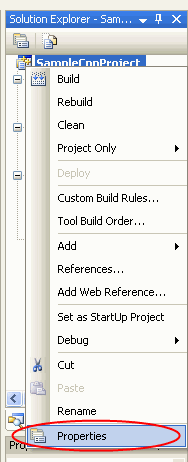
» Right click your solutions file in the Solution Explorer. Your solution will probably be called something different than the one shown.

» Click on Properties near the bottom of the pop out menu.
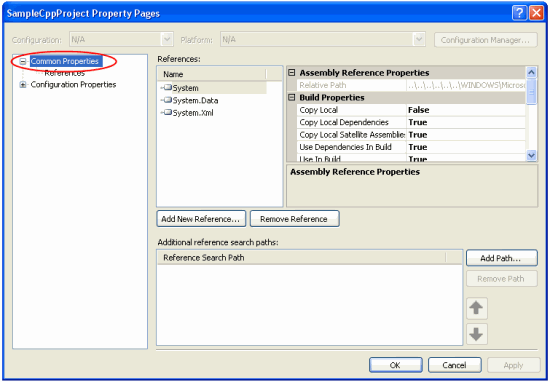
» A new Property window will appear. Click on the "+" next to Common Properties at the top of the left column.
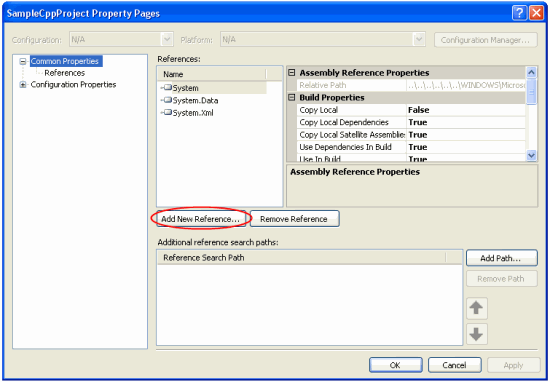
» Click on References. Now click on the Add New Reference button.
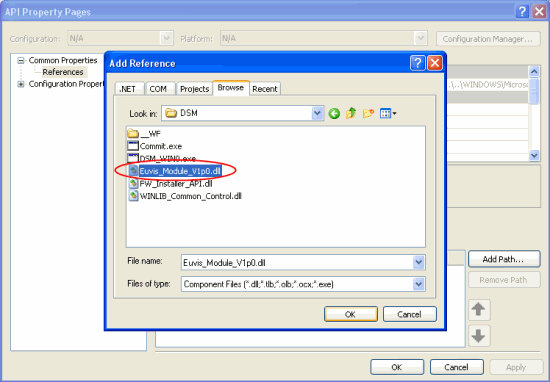
» Click on the Browse tab and then browse to the main AWG directory. By default the directory
is C:\Program Files\Euvis\AWG. Once you get to the directory, double click on
Euvis_Module_V1p2.dll then
click OK.
» Euvis_Module_V1p2 should now be listed under References along with its path.

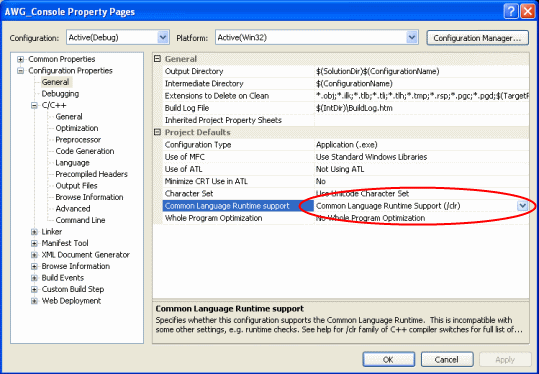
» Now click on the "+" next to Configuration Properties. Click on
General. Check to ensure that you have selected Common Language Runtime
Support (/clr),
if this is not a new project.
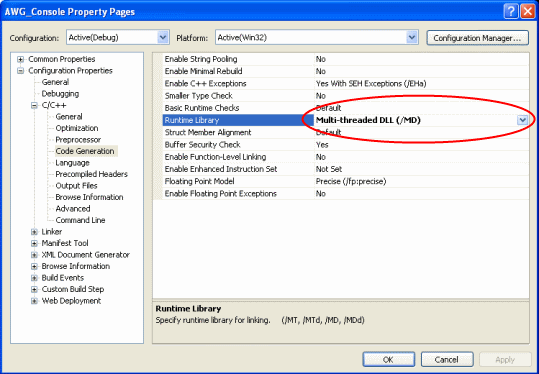
» Now click on the "+" next to C/C++ under Configuration Properties. Click on Code Generation. For the row Runtime Library, select Multi-threaded DLL (/MD).
» Now click the OK button to apply these properties.
The Euvis_Module_V1p2 file provides you with all of the functions and properties for you to control
your waveforms. You can use Visual Studio's Object Browser to view all of the functions and properties that are
available to you.
In order to use the functions and properties in the API, you must use the "using" directive to include the AWG and
MOL namespaces in your code source.
	using namespace MOL;
	using namespace MOL::AWG;