Module Parameter Panel -
The module parameter panel is accessed by the first tab below the tool bar and menu bar, near the top of the AWG application window. From this panel you can set parameters used by the AWG application to generate data to send to the AWG module, such as the clock frequency or sampling select window; stop or start the DAC and memory; and set internal states during multi-module operation.

General
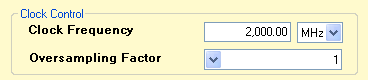
Clock Frequency
Sets the input clock frequency. It is very important that you enter the input clock correctly, matching your actual clock source, because the output waveforms are calculated based on this. Ensure that the clock frequency is right and that the units are also correct.
Oversampling Factor
When the Oversampling Factor is set to 1, the AWG board outputs each value of the waveform for 1 clock cycle of the input clock. If you set the Oversampling Factor to 2, the board outputs each data value for 2 clocks of the input clock. For an Oversampling Factor of 4, the board outputs each data value for 4 clocks of the input clock.
For example, let us assume that the input clock frequency is 2 GHz. The default Oversampling Factor of 1 will result in a change of data every 1 clock, or every 0.5 nanoseconds. Now if we change the Oversampling Factor to 2, the output data will change every 2 clocks of the input clock, or every 1 nanosecond.

DAC Running/Reset
Stops or resets the DAC. While the DAC is stopped, the waveform is no longer output.
SEL
Selects which of four possible times to sample the data. The optimal SEL setting changes for different clock frequencies, and at least one SEL setting allows data to be sampled near the most open part of the eye between signal switching. The SEL setting for the currently set frequency can be saved in the signature panel.
Memory RUN/STOP
Stops the waveform at the current memory address. When memory is stopped, you can go through each memory address manually and see the waveform data stored in each address using the Address Reset and Address Clock buttons.
Memory RUN/STOP is also useful if you wanted to change the input clock frequency in the middle of a waveform. You click the Memory STOP button to temporarily stop the waveform, change the input clock frequency then click on Memory RUN button (same button) and the waveform will start again at the new frequency. Be sure to also change the value in the Clock Frequency box to ensure that the output will match the values in the Waveform window.
ATE
Stands for Address Trigger Edge. ATE is an internal ASIC parameter and is used to control stability of the waveform. If you find that your waveform is not stable try switching this option on and off.
DLL
Stands for Delay Lock Loop. DLL is an internal Cypress CPU parameter and is also used to control stability of the waveform. Usually when you are operating above 1.5 GHz you should have DLL checked. If you find that your waveform is not stable try switching this option on and off.
Memory Address

Address Reset
When memory is stopped, you can click this button to view the waveform data for each of four memory banks at the first memory address.
Address Clock
Increments memory location by 1 so you can view output data values of sequential memory addresses. Only enabled when memory is stopped.
Address
Displays the current memory address. Not available unless memory is stopped by clicking on Memory STOP. You may type in a memory address in this box to view the data at that address.
Data
Displays the waveform data word in hexadecimal of the current memory address for each of the four memory banks.
Internal States

Auto Armed
When enabled will automatically arm the AWG so that after the "Loop Done" state, the board will automatically go into the "Armed" state and be ready for another trigger signal. You cannot change this option if the board is in Slave mode.
If disabled, the AWG will go into the "Disarmed" state after the "Loop Done" state in which case the user will have to click on the Arm & Ready button to put the board into the "Armed" state. For more information about the internal states please see the Internal States page.
SYNCO
When this is checked and the board is in Master mode, the board will output the SYNCO signal from the SYNCOUT SMA connector on the boards. When in Slave mode, the SYNCO option does not do anything.
The boxes to the right of SYNCO specify the TSYNC1 and TSYNC2 times. The first box specifies the TSYNC1 time while the second box specifies the TSYNC2 time. For both boxes, the minimum value is "0" and the maximum value is "FF" (decimal 255). For more information on the TSYNC times please go to the Synchronization page.
Internal SYNCI
When this is enabled in Master or Standalone mode, the internal SYNCI signal will mirror the SYNCO. You cannot change this option if the board is in Slave mode. For more information please go to the Synchronization page.
Arm & Ready
You will need to click on this button to put the board in the "Armed" state whenever you load a new waveform. Additionally, if Auto Armed is not checked you will have to click on this to put the board into "Armed" state manually after the board finishes outputting the waveform loops.
Abort
You may click on this button at any time to put the board into the "Disarmed" state.
Loop Count
Specifies the number of waveforms to output for each trigger signal. If you want an infinite loop or continuous output, please check Infinite.