User Defined Waveforms
You can create your own waveforms by loading a custom user defined waveform into the AWG GUI program. To load the file go into
the Waveforms tab and enter "202" into the Waveform Code box.
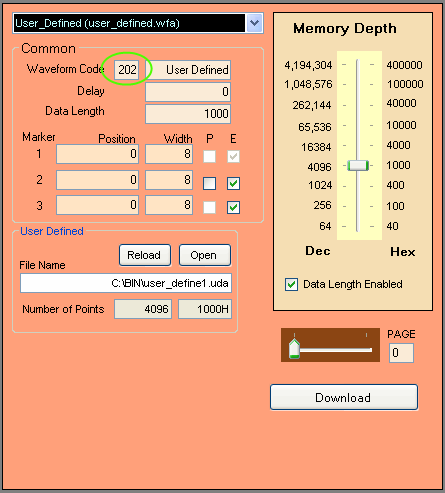
Then click on Open and load the file that you have created. The Data Length will auto adjust but you will need to manually adjust
the Memory Depth setting.
User Defined Waveform Files
To create a user defined waveform file you will just need to fill a text file with the waveform information and save the file with
a ".uda" extension.
Click on the file below to see what a user defined waveform file looks like:
For the "#type" there are only two options. If you want to use the GUI to control the markers then you would use "#type=1". By using this type, you can only control the markers with the three marker boxes in the Waveform tab. The other option is to use "#type=5" like the example. In this case, you can control the markers using the second column of the .uda file.
The "#hex=1" signifies that all data are entered as hexidecimal. This is the only option that you should use.
The first column of the user defined file specifies the amplitude of the output. Since the MUXDAC has an amplitude resolution of 4096 you can have amplitude ranging anywhere from 0 to 4095. In the .uda file you must specify the amplitude as hexidecimal so the first column can range anywhere from 0 to FFF.
The second column is optional and only relevant when you use "#type=5". This column is for the three marker outputs. You can think of the three markers as three bits. The LSB is for Marker 1, the second LSB for Marker 2 and the third LSB for Marker 3. To set any of the markers active you would just set that bit to "1". Therefore if you wanted to set Marker 1 active you would set the second column to "1". If you wanted Marker 3 active you would set the second column to "4". If you wanted all three markers to be active then you would set the second column to "7". The table below shows the different options for the markers:
| Setting | Marker 3 | Marker 2 | Marker 1 |
| 0 | Off | Off | Off |
| 1 | Off | Off | Active |
| 2 | Off | Active | Off |
| 3 | Off | Active | Active |
| 4 | Active | Off | Off |
| 5 | Active | Off | Active |
| 6 | Active | Active | Off |
| 7 | Active | Active | Active |
Unlike with the marker settings in the GUI, you can have any of the markers go active multiple times during each waveform. In addition, the marker is active for every four data points and you must have the marker active on the first of the four data points. If the marker is set to active on the second, third or fourth data points but not the first then the marker will not be active. Since Marker 2 has a polarity select, you will still use the "P" checkbox in the Waveform tab to select polarity of that marker.