Waveform Generation -
The DSM202 GUI is fairly straight-foward and simple to use. This section will discuss waveform generation tips and DSM202 limitations.
Define the Input Clock

Entering the correct input clock frequency is pivotal to correct waveform generation.
The start, stop, and step parameters are dependent upon the input clock frequency value.
Notice that the same frequency word in hex can represent various frequencies in Hz when
the clock frequency is altered. Keep in mind that the maximum input clock is 2.5 GHz.
*If the waveform generated is not what is expected, check the input clock frequency field first.
Define the Waveform Parameters
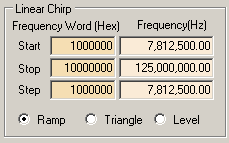
A linear chirp is characterized by its start frequency, stop frequency, and step frequency.
Set the desired parameters in these fields to generate the desired chirping waveform.
The maximum frequency that the DSM202 module can chirp to is 1.25 GHz. Inputting any frequency word value over the maximum is not allowed by the GUI. The maximum frequency word in hex is 8FFFFFFF.
The frequency update rate is 32 clocks per frequency update. The DSM202 module is not able
to generate waveforms that demand a higher frequency update rate.
*If a higher frequency update rate is desired see the DSM303
Select the Waveform Type
Click on the corresponding radio button to select the desired waveform type. Currently, there is ramp and triangle to choose between. There is also an optional "Level" waveform type.
Ramp Waveform Type
Toggle the Ramp radio button to select the ramp waveform type. This is the default waveform type. The ramp waveform is a linear chirping waveform starting at the start frequency, and chirping up at intervals set by the step frequency until it ends at the stop frequency.Triangle Waveform Type
Toggle the Triangle radio button to select the triangle waveform type. The triangle waveform starts at the start frequency, chirps up until in reaches the stop frequency, then chirps down until it reaches the start frequency again.Optional Level Waveform Type
Toggle the Level radio button to select the level waveform type. The diagram below will help illustrate how this waveform type operates:
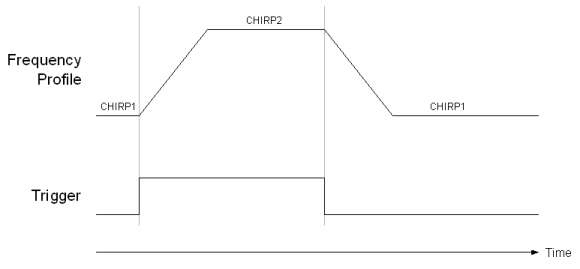
The level waveform type is a trigger controlled chirp waveform that chirps up when the trigger signal is high, and chirps down when the trigger signal is low. The parameters required are the "Start Frequency" (CHIRP1), "Step Frequency", and "Stop Frequency" (CHIRP2). The waveform will begin at the start frequency. The module will chirp up or down depending on the trigger signal. The module saturates at the start and stop frequencies. The chirp interval is defined by the step frequency. The module will not chirp up past the stop frequency, nor will it chirp down past the start frequency.
Generate the Waveform
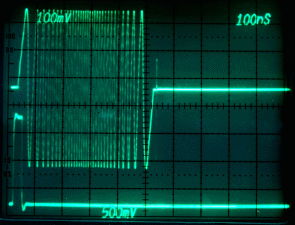
Triangle Chirping Waveform in Burst Mode
Once the input clock frequency, the start frequency, the stop frequency, the step frequency, and the waveform type is defined. The DSM202 will be ready to generate the new waveform. To run the new waveform in free run mode, click abort then click restart. To run the new waveform in burst run mode, click abort then arm. The changes in the GUI are highly responsive and can be noticed through an immediate change in output. These are the steps to generate a linear chirping waveforms using the DSM202.
The DSM202 GUI is a highly responsive user interface. Changes can be observed instantly. With the DSM202 GUI, the user is able to dynamically define and generate linear chirping waveforms.
Usage Notes
(1)To output a single constant frequency, enter the desired frequency in the start and stop frequency parameters. Then, enter 0 for the step frequency.