Menus -
File :
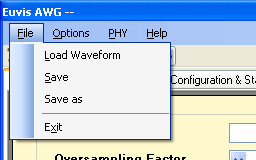
Load Waveform
Sends the waveform data to the AWG board. You will need to use this when you change any waveform parameters. This does the same thing as the Download Waveform button in the Waveform panel.
Save
Saves all parameters into current waveform file. The current waveform is the one listed in the drop-down box in the Waveform panel. For detailed instructions on saving waveforms please see the Save Waveform page.
Save As
Saves all parameters into a new waveform file. When you click on "Save As", a new dialog box will open listing all the parameters. For detailed instructions on saving waveforms please see the Save Waveform page.
Options
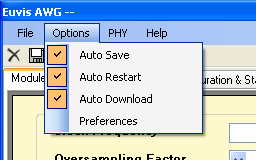
Auto Save
Automatically saves all parameters into current waveform file after any changes. If this option is not enabled, you must either click on File --> Save or click on the single disk icon on the top menu bar to save your parameters into the current waveform file.
Auto Restart
Automatically restarts AWG memory when you load a new waveform.
Auto Download
Automatically downloads waveform data to AWG board when you load a new waveform. If Auto Download was disabled, you would need to click on Download Waveform button in the Waveform window or click on File --> Load Waveform.
Preferences
Brings up the Preferences window:
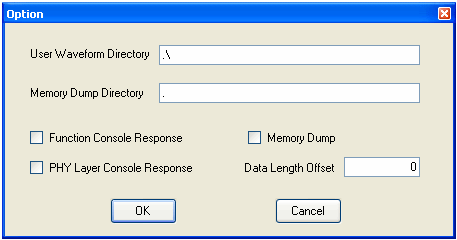
Waveform Directory is the location where you want the waveform files to be saved to. The ".\"
represents the root directory of the program, which you specified during installation. The default is C:\Program Files\Euvis\AWG
Memory Dump Directory is the location where you want the memory dump to be saved to.
Function Console Response enables or disables the Function console. The Function console displays all user commands
that are sent to the board.
PHY Console Response enables or disables the PHY Layer Console. The
PHY Layer Console, at the lower right corner of the AWG window, displays all information that the
application receives from the AWG board.
Memory Dump enables or disables memory dumping. When memory dumping is enabled, the application will dump all
data sent to the board in a .dat file located in the aforementioned Memory Dump Directory.
Data Length Offset specifies how many memory addresses to leave empty at the end of the waveform for more stable
output. At around 2.5 GHz clock frequency,
set this to "190".
PHY
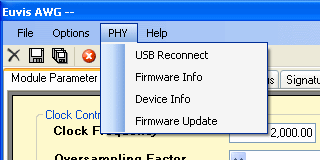
USB Reconnect
If you accidentally unplug the board while the program is still running, you can use this to reconnect without having to exit the program.
Firmware Info
Provides information about the firmware:
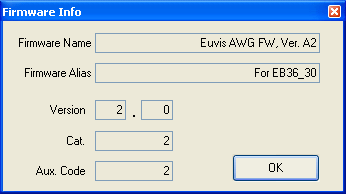
The most important items here are Firmware Name, Firmware Alias and Version number. If you contact us for support, we will need to know what these are.
Device Info
Provides information about the AWG hardware:
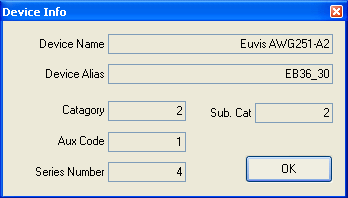
The most important items here are Device Name, Device Alias and Series Number. If you contact us for support, we will need to know what these are.
Firmware Update
Advanced feature to update the firmware by flashing the ROM:
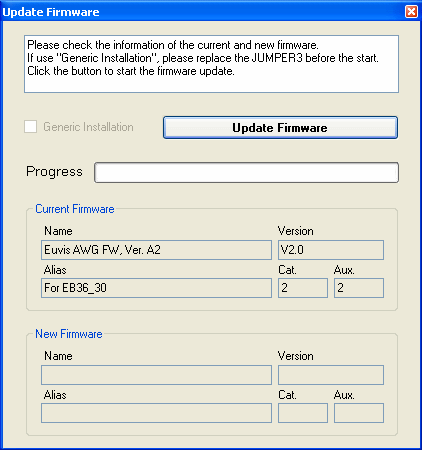
For normal flashing, power up the AWG board with a jumper on JP3 and click on PHY --> Firmware Update to open the above dialog box. The dialog box will show you the current version of the firmware on the device and the new firmware that you will flash on to the ROM. Simply click on Update Firmware to begin the process. It will take approximately 30 to 60 seconds to complete flashing. To register the changes to the application, close the application, power down the board, and then power up the board. When you open the program again and click on PHY --> Firmware Info, it will show the new firmware information.
If there is a major problem with a new firmware, we will recommend to you to do a Generic Installation. To do this, with the AWG power supply turned off, remove the jumper from JP3 on the board. Power up the device and open the AWG application. Go to PHY --> Firmware Update to open the dialog box. Place the jumper back on to JP3. Now click on Update Firmware to begin flashing. To register the changes to the application, close the application, power down the board, and then power up the board. When you open the program again and click on PHY --> Firmware Info, it will show the changed firmware information.