Save Waveform
Users can save waveforms as new waveform files or overwrite existing ones. Waveform files are marked ".wfa" and by default are in the directory C:\Euvis\AWG_TRX\.
Saving into Existing File
» After you have loaded an existing file, change the waveform parameters and the module parameters to the desired settings.
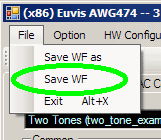
» When you are ready to save, go to the menu bar and click on File --> Save WF.
Saving into New File
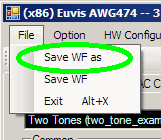
» First, load any predefined waveform from the drop-down list in the Waveform panel, and simply change any parameters to the desired settings. Then go the menu bar and click on File --> Save WF as.
» A new dialog box will appear, giving you the option to save the waveform.
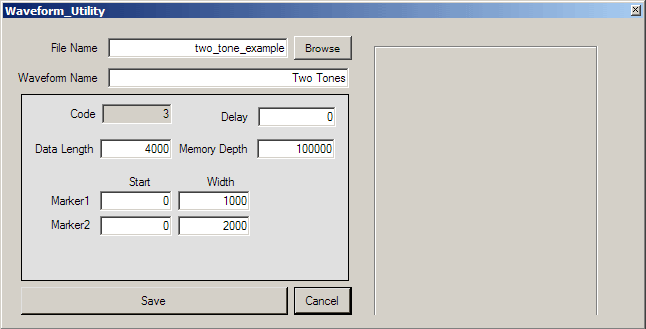
File Name is the actual file name that the operating system uses to identify your file.
Make sure that the file name ends with ".wfa" to distinguish it from other files.
Use the Browse button to choose the directory in which to save
your files. The default directory is your program directory, but please note that if you uninstall the AWG application, any waveform
files saved in your program directory may be erased, so please save your waveforms
in a different directory.
Waveform Name is an internal program name that will show up in the drop-down list in the
Waveform panel and will help you identify the waveform file.
Check to make sure the parameters in the dialog box match the desired ones. Change
if necessary.
» After you are satisfied, click on the Save button.
Note:
If the File Name is
not unique, the program will overwrite the existing file without forewarning you,
so please
be careful.