Getting Started
Thank you for choosing the Euvis Arbitrary Waveform Generator. To use all the functions of the
AWG TRX, you must install the software and drivers prior to connecting the AWG
TRX to your
computer.
Software and Drivers
Before connecting the AWG TRX module to your computer, you first must have installed the requisite software on your computer running Windows XP or later:
- both Microsoft .NET Framework 4.0 and Microsoft .NET Framework 4.0 SDK, and
- the Euvis AWG application and related drivers
Please follow the step-by-step instructions to install the software and drivers before connecting your computer to the AWG TRX. The drivers are specialized to work with the AWG TRX, so they must be installed correctly before connecting the AWG TRX to the computer.
Power-Up
After powering up the AWG TRX, please wait until the AWG TRX has finished its intialization sequence before starting the GUI (approx. 10 seconds). If you open the GUI before the module has initialized, you will not be able to control the AWG TRX. To determine when the intialization sequence has been completed, check to make sure a Euvis AWG_TRX device appears under the Universal Serial Bus Controllers section of the Windows Device Manager.
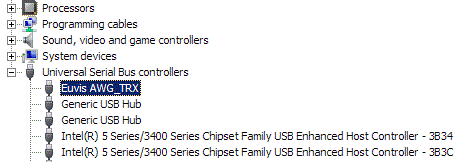
After checking that the initialization sequence has completed using the method described above, launch the TRX_AWG_WIN application by double clicking the icon on the desktop. This program will allow you to download waveforms to the AWG TRX module and will facilitate the configuration of waveform parameters and operation settings.
Changing the Clock Frequency (Signature File)
The Signature tab contains controls for the module's individual hardware settings and is not enabled for editing. When operating the AWG TRX at different clock frequencies, the settings will automatically be changed for optimal performance. These settings are saved in a signature file. A preset signature file has been included in the main AWG TRX directory. The signature file contains preset hardware settings for frequencies from 2 GHz to 4 GHz for the AWG474.
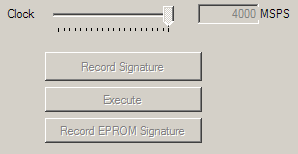
More details on the signature can be found in the found in the signature section.
Waveforms
All Euvis AWG TRX's come with several built-in waveforms including: absolute sine wave, relative sine wave, ramp, frequency chirping, and N-tones. To access these waveforms, click on the Waveform tab. Use the pull down menu to select the waveform named "1/32 Sine (sine_1o32.wfa)". This is a default Sine wave at 1/32th of the clock frequency. The parameters of the waveform are modifiable by editing their respective text boxes and hitting return to enter the new parameter.
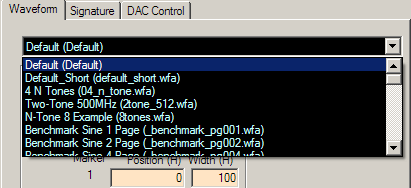
In order for the AWG TRX output to reflect the current waveform parameters, the new waveform must be downloaded to the AWG TRX. Click the Download button (at the lower right corner of the waveform panel, or press F8). The computer then downloads the parameterized data to the AWG TRX memory so that the firmware generates the actual waveforms. You must press the Download button each time you change the waveform parameters and the button must be pressed for both A and B channels in single channel operation.
Press the Play button (in the menu bar, or press F3) as needed to play the waveform.
For a brief description of other waveforms available in the GUI application, please see the lease see the Waveforms page.
Abort and Restart
Clicking on the "Stop / Abort" button will stop output from the AWG TRX.
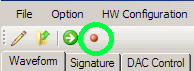
Clicking on the "Play / Restart" button will cause the AWG TRX to start playing the waveform.