Example 5 : User Defined
This example will show you how to create an user-defined waveform which is a custom waveform that you can create using an external
text file.
Click on the Waveform tab. In that panel, make sure that the Waveform Code is set to "202". This is the code for user-defined waveforms.
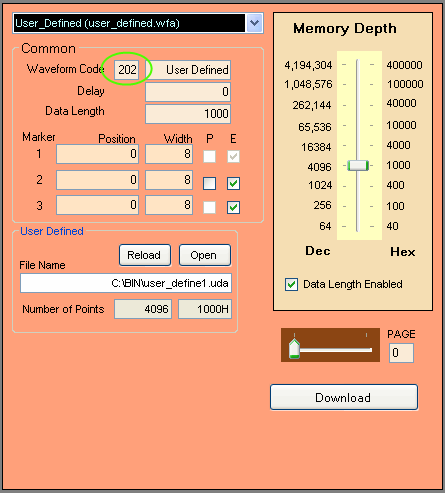
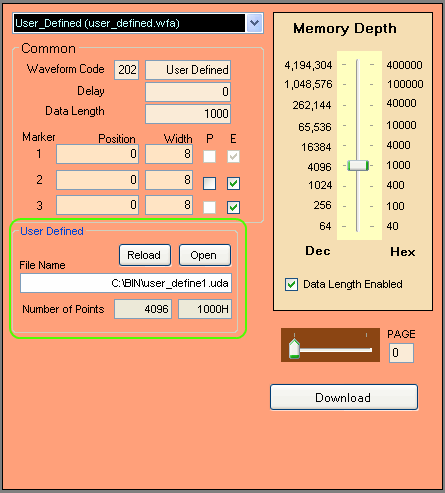
You should see that in the Waveform Type box it will say "User Defined". On the bottom you will see the box change and you will be
able to open up a custom ".uda" file to load. For more information on the custom user defined files, please see the
User Defined Waveforms page.
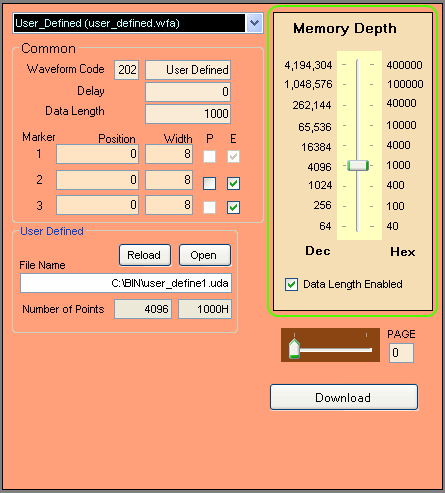
You can also change the number of points that the sine wave will have per cycle. To do this, change the Data Length to the number
of points you want and then make sure that the Memory Depth is either equal to or more than the Data Length. Please note that the
Data Length is specified in hexidecimal. For more information on Memory Depth and Data Length, please see the
Memory Depth and Data Length page.
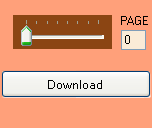
Press the Download
button (at the lower right corner of the waveform panel). You
must press the Download button each time you finish changing the parameters.
Press the Restart button as needed to restart the waveform.