Menus
At the top of the AWG TRX application window is the menu bar, from which you can set several options. Below the menu bar is a toolbar with several frequently used functions.
File:
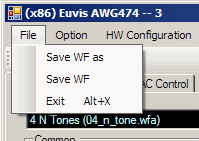
Save WF
Saves all parameters into current waveform file. The current waveform is listed in the drop-down box in the Waveform panel. For detailed instructions on saving waveforms please see the Save Waveform page.
Save WF as
Saves all parameters into a new waveform file. A new dialog box will open listing all the parameters and allow you to save it under a new .wfa file name. For detailed instructions on saving waveforms please see the Save Waveform page.
Exit
Exits the AWG TRX application and closes the window.
Options:
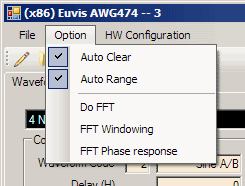
Auto Clear
Enabled by default. Automatically clears the last waveform from both waveform display panels when a new set of data is uploaded from the AWG TRX. Disabling this option will overlay successive waveform uploads in different colors. This will allow the user to compare different waveforms in both the time and frequency domains.
Auto Range
Enabled by default. Automatically sets the Waveform Display axes limits to display the entire uploaded waveform. With this option disabled, the axes limits will not automatically change when a new waveform is uploaded from the AWG TRX. This allows the user to compare the same section of different waveform uploads.
Do FFT
Enables the Fast-Fourier Transform computation that allows the user to analyze an uploaded waveform in the frequency domain. The FFT is displayed in the bottom set of axes in the Waveform Display panel by default.
FFT Windowing
When enabled, convolves the uploaded waveform with a standard Blackman window. This option is used for frequency analysis of waveforms that are non-periodic.
FFT Phase Response
Information not available at this time.
HW Configuration:
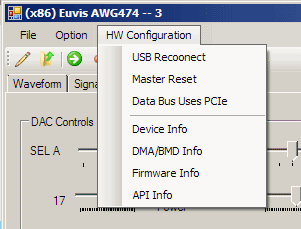
USB Reconnect
Reconnects the AWG TRX module to the USB port after it becomes unplugged. Use this feature to reconnect to the AWG TRX after accidentally unplugging the USB port during use.
Master Reset
Use this option if the AWG TRX is experiencing problems. Allows reinitialization of the device without powering down the AWG TRX.
Data Bus Uses PCIe
Selects either PCIe (enabled) or USB (disabled) as the primary data bus for uploading and downloading waveforms to the AWG TRX.
Device Info
Provides information about the AWG TRX hardware:
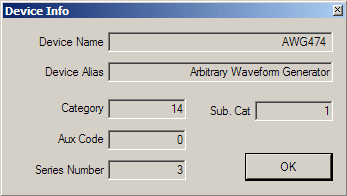
The most important items here are Device Name, Device Alias and Series Number. If you contact us for support, have these items on hand.
DMA / BMD Info
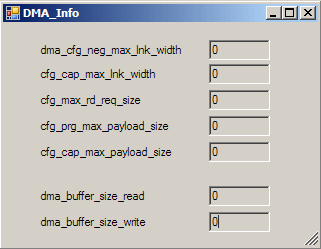
Displays the current PCIe DMA/BMD configuration. You will need to have this information when contacting Euvis for technical support.
Firmware Info
Provides information about the firmware:
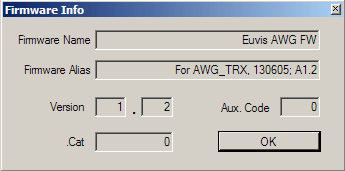
The most important items here are Firmware Name, Firmware Alias and Version number. If you contact us for support, have these items on hand.
API Info
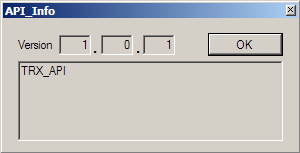
Displays version information for the Euvis API. You will need to have this information when contacting Euvis for support.
Toolbar:

The toolbar is located below the menu bar. Some commonly used functions are placed here. These functions are:
- Download
- Upload
- Play
- Stop / Abort